Showing posts with label Tutorials. Show all posts

Saturday, September 21, 2019

How To Withdraw BAT Token From Uphold To bKash?

AirTM website is a peer to peer market where people exchange dollars in AirTM for money in other places like- Banks, E-wallets, Gift Cards, Cryptocurrency and many others. One of the common trades in the AirTM Market is the Dollar exchange which happens at the fair market price.

How To Withdraw BAT Token From Uphold To bKash?

Airtm website is an e-wallet connected to over 300 bank and e-money systems via a peer-to-peer network and direct bank connections. Airtm website members Deposit their money as dollars or cryptocurrency, and can send and receive funds domestically and internationally.


Today We Learn :-

  1. How to Transfer BAT Token Uphold to bkash Instantly?
  2. How to Send BAT Token to USD Card?
  3. How to Deposit Uphold to Airtm Account?
  4. How to Withdraw money from Airtm to bKash?

1. Transfer BAT Token From Uphold to Bkash Instantly.

Just Follow Those Steps-

2. How to Send BAT Token to USD Card?

First Login your Uphold Account.

Click Uphold BAT Send To USD Card.

Uphold BAT Send To USD Card

Uphold Confirm Transaction.

Uphold Confirm Transaction


4. Uphold transaction ID.


Exchange BAT token to USD Card Complete.


3. How to Deposit Uphold to Airtm Account? 


Now Login To Airtm Account

Select Deposit Button

Uphold Balance Deposit into Airtm Account.

Uphold Balance Deposit into Airtm Account.

Airtm Deposit Confirm

Select your Airtm E-Transfer Details.

Airtm Peer E-Transfer Details.

This is Uphold member user and Email Address.

Uphold member user and Email Address

Copy That emails address.

Now Go to Your Uphold account.


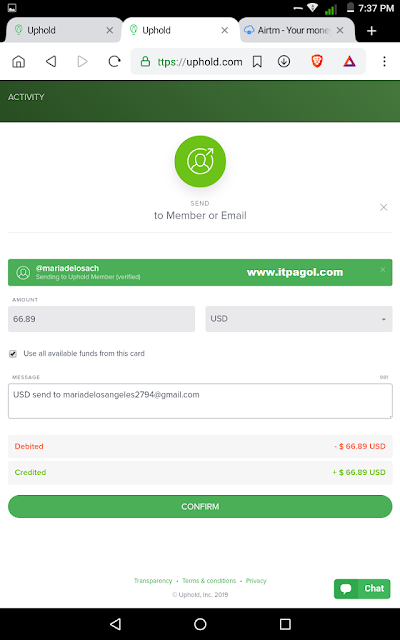
Click Balance Send To uphold member.

Balance Transfer To uphold member.

Uphold Balance Send to Airtm Peer Email address.


Confirm Transaction to Uphold member email.

Confirm Transaction to Uphold member email.


Uphold Balance Send to Airtm Peer Email address.

  Airtm Deposit Confirm Successful.


How to Withdraw money from Airtm to bKash?

Now Login to Airtm Website.

Airtm Available Balance.

Airtm Available Balance

Now Click Airtm withdraw Button.

How to Withdraw money from Airtm to bKash?

Type your bKash Number and Click Submit Request.

 Click Yes To Confirm bKash Withdraw.

Click Yes To Confirm bKash Withdraw.

Airtm Withdraw Processing.

Airtm Withdraw Processing

Airtm bKash Withdrawal Transaction ID Details.

Airtm Withdrawal transaction Details

Airtm to Bkash Transaction Successfully Completed.

Airtm to Bkash Transaction Completed

You can Dollar Exchange with bKash using Airtm website. 

In this way  Instantly Receive your payment by using paypal, paytm, bkash, bank, Bitcoin and mastercard etc.

Note:-

  • You must have a Verified Uphold Account.
  • You must have a Verified Airtm Account.
  • You must have a bkash Account.
  • You must have a available balance in your Account.
  • You have to rate (feedback) your peer. 

Now you can easily withdraw your Bat Token From Uphold To bKash.

Sunday, February 25, 2018

How to create free Apple Account Without Credit Card

Apple ID and password gives you access to all Apple services. If you want to buy music on iTunes, download apps in the App Store, or use iCloud, you must have an Apple ID. Whatever your reason might be to do so, we are going to show you how to create an Apple ID without a credit card. 

Create an Apple ID Without a Credit Card  
 
In this way your can easily Create an Apple ID Without a Credit Card on an iPhone, iPad, or iPod Touch.

How to create an Apple Account Without Credit Card?


Just Follow Those Steps:-

First Click Here To Create Apple Account

Click Create Your Apple ID.

Now Click Create Your Apple ID.

Fill Those Form and Click Continue.

Now Fill Those Form and Click Continue.

Verify Your Apple ID Email Address.

Now Verify Your Apple ID Email Address.

Your Email Address Successfully Verified.

Now Your Email Address Successfully Verified.

Log In your Apple ID


Now Enjoy your Apple ID.

Saturday, October 21, 2017

VISAPOINT | Embassy of the Czech Republic

VISAPOINT is online appointment booking system of Embassy of the Czech Republic. Registration must be done only at the official website of the system (visapoint.eu). No other website is used for registering the appointment for submitting the application.

VISAPOINT | Embassy of the Czech Republic

 This service is for applicants for the following types of Czech visas and residence permits:-

   1. Short stay Schengen visa (up to 90 days),
    2. Long stay visa (more than 90 days),
   3. Long term residence permit,
    4. Permanent residence permit. 

How to Request Appointment date and time from Visapoint?

 First Click here for Registration VisaPoint.

Click Accept.

Now Click Accept.

Click Request Appointment Slot

Click Request Appointment Slot.

Select those option and  Click Next.

Now Select those option and  Click Next.

Click Previous and Try Again

Click Previous and Try Again.

If website show Appointment date and time. 

Appointment date and time.

Then Click Next.

Now fills those form in Latin letters basic data for registration.  (International Passport Information)

Use International Passport Info

Now Click Next. 

 Type Passport No, Your email address and Mobile Number.

type Passport No, Your email address and Mobile no. 
 
Then Click Next. 

Click Submit Application.

Now Click Submit Application.

How to Confirm Appointment of Visapoint?

Now Check your Email Inbox.

Click That Link to Confirm appointment

Now Click That Link to Confirm appointment.

Fill those form using your email information & Click Submit.

Fill those form using your email information & Click Submit.

Click Confirm Appointment.


Click Confirm Appointment.

Now Check your email inbox.

Now You have successfully confirmed your appointment.

Note:-

1.  You can apply maximum 5 registrations a day.
2. Registration must be confirmed within 60 minutes from finalizing the registration.
3.  All entries must be written in Roman letters.
4.  The system automatically releases available terms randomly at various intervals (hours or days) a few times a week. 


Wednesday, August 30, 2017

Number converter - decimal, hexadecimal, octal, binary

An easy method of convert numbers between decimal, hexadecimal, octal and binary. Also handles fractional numbers.  


Number System Conversion

Number converter - decimal, hex, octal, binary.
 
Online Number converter - itpagol Toolbox 


Number System Conversion:-

1. Decimal To Binary:

Decimal To Binary


2. Binary To Decimal:

Binary To Decimal


3. Decimal To Octal:

Decimal To Octal


4. Octal To Decimal:

Octal To Decimal


5. Decimal To Hexadecimal:

Decimal To Hexadecimal


6. Hexadecimal To Decimal:

Hexadecimal To Decimal


You can also use Number Converter apps


Saturday, February 11, 2017

Create Apps for Android | No Coding Required

You can Easily create your own android apps without using any  Coding knowledge.Convert any web content into an Android App using Free Android App Maker.You can create Your Own App for Free and Make Money.


Create an UNLIMITED number of apps for FREE Publish your apps without any restrictions Get 50% revenue share from app monetization.


Create Apps for Android | No Coding Required


Just Follow Those steps:-

Step-1:- Click here to Make your own android apps.

Step-2:- Click CREATE APP.

Step-3:-Choose a theme or Template.


Select Website.


Step-4:- Now Select Website.

Type your Website Address and Click Next.


Step-5:- Type your Website Address and Click Next.

Type your App Name and Click Next.

Step-6:- Type your App Name and Click Next.

Type your Apps Description and Click Next.

Step-7:- Type your Apps Description and Click Next.

Select an Apps icon and Click Next.

Step-8:- Now Select an Apps icon and Click Next.

Click CREATE.

Step-9:- Now Click CREATE.

Sign Up using your Email and Password.

Step-10:- Sign Up using your Email and Password.


Now Verify Your Email address.


Step-11:- Now Verify Your Email address.

Go To your Dashboard.

Step-12:- Now Go To your Dashboard.

Click Download.


Step-12:- Now Click Download.
 
Bijoy to Unicode converter Android Apps.

 
Now Enjoy your Android Apps.